


If you've been reading Retro Dodo throughout the year, you'll know we like discovering new frontends for our retro handhelds, and one I have personally been using for some time and even supported early on in its development is one called DigiBitPlay. It's one of the many frontends that prioritises cartridge and disc art in a way that makes your library more personal.
And let's face it, there's a lot of underrated cartridge art and disc art out in the world, so this makes you appreciate that in a way that feels fresh. Originally DigiBitPlay locked this new Version 6 behind a paywall, but as the developers have promised, these new versions eventually make their way into the public for free once the bugs are ironed out, and that's exactly what has happened with their latest version available for Windows and Android devices.
What's new in V6?
- Windows and Android: DigiBitPlay Free now runs on Windows PCs as well as Android phones, tablets and handhelds.
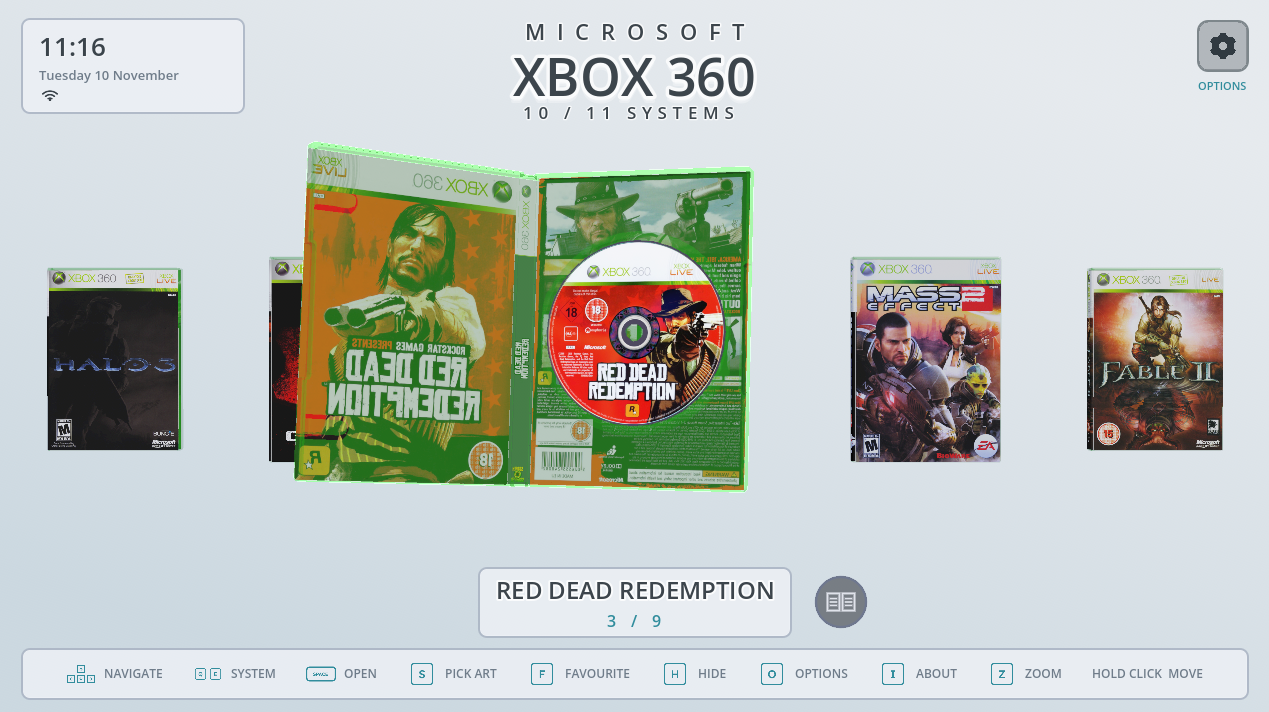
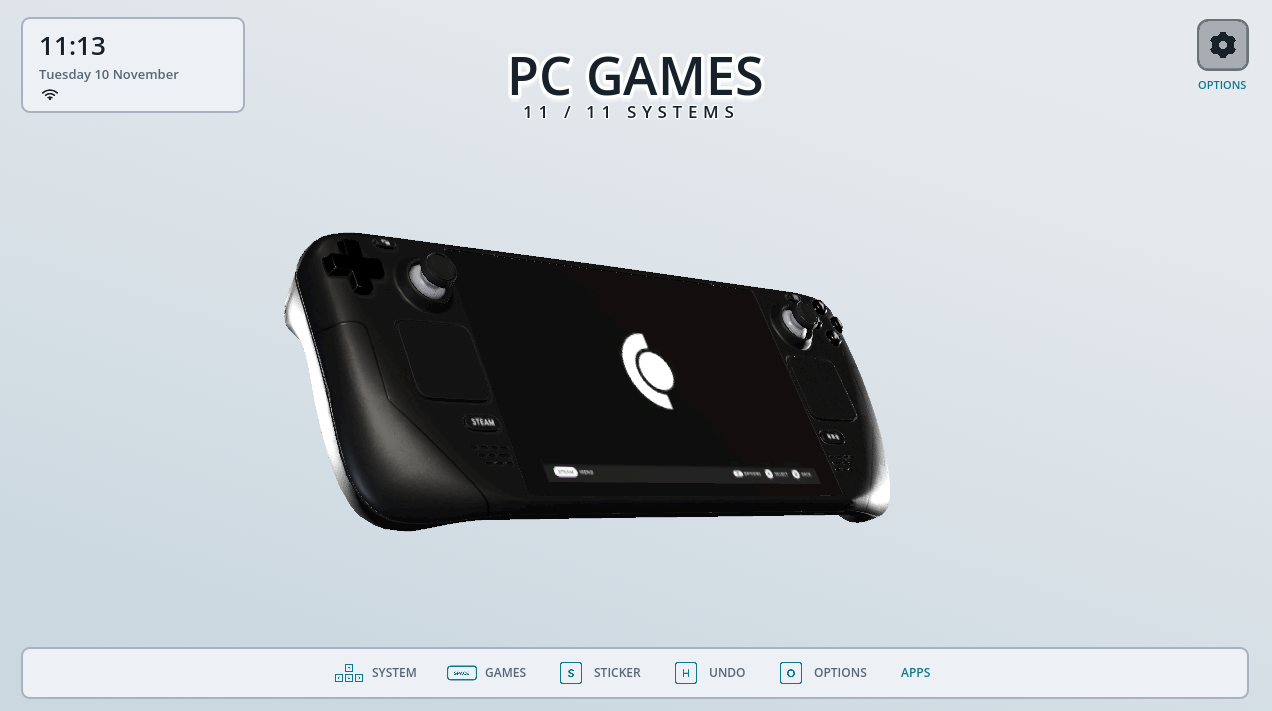
- Supported Consoles in the Free Version: PlayStation 1, PlayStation 2, Game Boy, Game Boy Color, Nintendo 64, GameCube, Wii, Nintendo Switch, Xbox 360, Steam (PC Games) and Android Games.
- New in the Free Version: Nintendo 64, SNES, GameCube, Wii, Nintendo Switch, Xbox 360, Steam (PC Games) and Android Games have been added. Each one has its own 3D console model and 2D picture.
- Dual Screen Mode: DigiBitPlay can now use both screens on dual-screen handhelds like the AYN Thor, AYANEO Pocket DS and Retroid Pocket Duo, instead of stretching one picture across both. The top screen shows the frontend, and the bottom screen follows your selection.
- Choose Your Layout With Pictures: When DigiBitPlay finds two screens and you pick “Use both screens”, a grid shows a picture of every layout on both screens, with separate tabs for 3D and 2D layouts. Pick the one you like, and it is set up right away. You can open the same grid any time under Settings > Looks > Appearance > Dual Screen > Choose a layout with pictures.
- Dual Screen Layouts: Choose between Cartridges and Console, Console and Games, Console and 3D Games, Game Library and Information, or Game Library and Manual, in both the 3D and 2D view.
- Synchronised Animations: Cartridges and discs fly from one screen to the other and go into the console on the bottom screen when you start a game.
- While You Play: The bottom screen can show the game’s manual, cheat sheet or game description while the game is running, keep showing the console, or hand the screen over to the emulator.
- Swipe Through Your Games: Swipe, hold or pinch to zoom the games row on the bottom screen, just like on a single screen.
- Game Settings in Dual Screen: Pressing Options while the console is on the top screen now opens the settings for the game you picked on the bottom screen.
- Swap Screens: Put the frontend on the bottom screen and the companion on the top screen.
- 2D on Both Screens: When the 2D view is on, both screens now stay in 2D.
- First Start: DigiBitPlay always starts on one screen. The first time it finds two built-in screens, it asks whether you want to use both. A TV or monitor will never trigger the question.
- Cheat Sheets: PS2, GameCube and Xbox 360 cases can now have a folded cheat sheet under the manual clip. On Dual Screen, the bottom screen also gets a CHEATS page. Cheat sheets are off by default. Turn them on under Settings > Looks > Shelf > What to show > Cheat sheet in the case.
- Game Magazines: Read old game magazine pages about the selected game directly in the app. Issues are grouped by language with cover previews, so you can pick the one you want. Turn the button on or off under Settings > Looks > Shelf > What to show > Magazine button.
- Replace Manual Files: You can now replace a game’s manual with a new PDF or picture, and the booklet and pages update right away. Find it under Settings > Right now > This game > Manual > Replace manual file.
- Continue Playing: Your recently played games now appear in a Continue Playing case at the end of your console list, so you can jump straight back into them.
- Smoother Console Switching: The game row now slides in when you change system, instead of appearing all at once.
- Brighter Scenes: Removed the dark vignette around the edges, so consoles and games now have the same brightness.
- Fixed Glitching Game Cases on Android: Fixed closed game cases sometimes turning into stretched or broken shapes on Android devices.
- Light and Dark by Time of Day: DigiBitPlay can now switch between a light and a dark theme automatically at the times you choose. Turn it on under Settings > Looks > Appearance > Theme > Switch light and dark by time of day.
- Android Games Added Automatically: The Android Games console now looks at the apps installed on your device and adds every app Android lists as a game by itself. You don’t have to set up a folder for them. Emulators are left out, so only real games show up. New games appear the next time you start DigiBitPlay, or right away if you press Look for new games under Settings > Content > Library > Installed games. You can turn it off there too.
- Open a Game With Any App: Each game can now open an app or program of your choice instead of its emulator. On Android the App Drawer opens so you can pick the app. On Windows you pick the program.
- DroidDeck Support (PC Games on Android): Your Steam games in DroidDeck can now show up under PC Games and start straight from DigiBitPlay. To set it up: DroidDeck is used automatically when no other app is picked for PC Games. If you picked another app before, choose DroidDeck under Settings > Content > Library > Emulators. When you add new games in DroidDeck, sync again, and DigiBitPlay picks them up when you come back to it.
- Install DroidDeck and add your Steam games there.
- In DroidDeck, open the Library tab, go to Frontend files, and press Sync all game files to folder. Pick a folder on your device, for example Games/steam on your SD card.
- In DigiBitPlay, add that folder to PC Games under Settings > Content > Library > Folders. If the folder sits inside a folder DigiBitPlay already uses (for example a “steam” folder inside your Games folder), it is found by itself.
- Your games now appear under PC Games. Select one and start it, and DroidDeck takes over and launches it through Steam.
- App Drawer (Android): Added an App Drawer that shows the games and apps installed on your device. Press Down twice on the game row to open it. Adjust it under Settings > Looks > App Drawer.
- LaunchBox Artwork Source: Added the LaunchBox Games Database as a new artwork source. It needs no account or API key. It downloads covers, back covers, cartridge and disc images, spines, screenshots, backgrounds and game details. Select it under Settings > Looks > Artwork > Download art > Artwork source.
- Automatic Game Descriptions: Game descriptions now load automatically. If you don’t have a scraper account, DigiBitPlay falls back to Wikipedia.
- Several Folders per Console: You can now add more than one game folder to the same console. Manage your folders under Settings > Content > Library > Folders.
- More Emulator Options: Added emulator setups for all the new free consoles, plus more Winlator and Steam-on-Android launchers.
- Easier to Read on Handhelds: Settings text is now bigger and slightly bolder on phones and handhelds, so it is easier to read on small screens.
- New Settings Layout: Settings can now open as a centred box with a sidebar instead of the side drawer. Switch between them under Settings > Looks > Appearance > View > Settings layout.
- Backup & Restore: Save all your settings, covers, manuals and data as one zip file and restore it later or on another device. Find it under Settings > App > Backup & restore.
- Improved Intro Setup: The setup wizard has been redesigned again with a full-screen layout, clearer chapters, and picture examples for choosing your artwork style. The start screens now also fit properly on 4:3 screens.
- Controller Vibration: Fast scrolling, opening game boxes and inserting cartridges now give light haptic feedback. Slow scrolling stays silent. Adjust the strength or turn it off under Settings > App > Sound & controls > Vibration.
- Quit Box Fix: Fixed the controller getting stuck behind the settings menu when the Quit box was open.
- Android Performance: Lower memory use and faster loading on Android. Manual covers are now saved so they don’t need to be rebuilt, and the number of covers kept in memory now depends on how much RAM your device has.
- Lighter 3D Models: Several console and case models have been optimised to load faster and run smoother.
- Dual Screen Fixes: The App Drawer’s app menu no longer shows up on both screens at once.
- Additional Fixes: Various smaller visual, navigation, animation, and interface improvements have been made throughout the frontend.
As you can tell, it's a huuuuge update; there are so many new features, and the installation guide is super simple too, allowing you to automatically add ROMs, and it will automatically download disc/cartridge art too. It's very sleek, and I highly reccomend checking it out. It can be downloaded by visiting their official Patreon page.


